Alternative Photo Posting Methods
This is for Peter and anyone else who may be interested in the several ways to post photos to our family blog:
The other day I posted a photo of a storm in Saskatchewan, by using my flickr photo page and the super-easy "blog this photo" button/tool that comes with flickr. (try clicking the link in the last sentence to see that post. Then try clicking that photo to see how it takes you to my flickr page. When you click on that photo, it takes you directly to my flickr page instead of opening up another window with just that photo in a larger version. For me, this is the easiest and fastest way to make a blog post using my photos (takes about 2 seconds.)
Here, for comparison's sake, I am posting the same photo using an alternate method, which is probably what most of you are using to post photos here; i.e. I posted the photo below by:
step 1: clicking the Blogger button that looks like a little photo icon above the "new post" windowpane. It looks like this: 
step 2: Next, you get another window with two image loading options (click that bold phrase to see what I mean) to A. upload from your computer .... or B. link to a photo on another webpage
step 3: for the photo below, I used the first option, worded: "Add an image from your computer." Using the browse button, you find the photo on your computer, click "Okay" then voila there's your photo in your new blog post. Try clicking the photo below to see how it opens larger in a new window. If it doesn't, then you need to switch to using Firefox for your browser!
Because this way uses a photo from your computer, it is stored at our Blogger site -- on the Blogger server. So, when you click the photo, it just opens the photo larger in a new window. It is not connected to any other website and it is no longer connected to your computer (so anybody who may be paranoid that posting things from your computer somehow allows someone to get on your computer can relax, sit back and enjoy blogging your photos.) This way is nice because it allows anyone on our blog to see the photos enlarged on their monitor without going to an external website like "Maureen's Flickr page."
The main downside to uploading photos to our blog from your computer is that it affects the page-loading speed. Having all these photos stored on the Blogger server site (and indirectly on our blog) means it slows down the page-loading (a little) when someone clicks on our blog's main page. This is no big deal UNLESS you just happen to have a slow connection like Peter and Roma do, waaaaaay up there in the boonies.
When I first created the blog, I did not have blogger archive the posts, because I wanted everyone to be able to scroll down and see every post. However, I had to change that soon after we started because it was taking too long to load the page with all of those photos! So now our blog posts are archived every week (I think) and you have to go hunting in the archives (in our sidebar) to find old posts.
The downside to the other method, of linking my photos to my flickr page is that when somebody clicks on the photo - it takes them to my flickr photo page, then they have to be familiar enough with Flickr to know that you can click the "All Sizes" button to see the photo large --- or even huge. Here's another version of that same photo, digitally tweaked in Photoshop to give it an old-world painting feel. Click the photo to see it larger on my flickr page: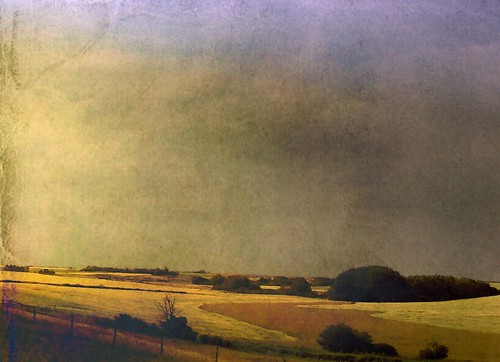
I have lots of reasons for linking photos to my flickr page. I won't bore you with all of them -- suffice to say I am moving towards doing my photography and mixed media art professionally, and I want to get as much feedback and exposure for my work, as I can. Flickr has been awesome in that regard. Also, on the photo's flickr page -- people can visit the other photos I may have posted in a series, to see more of my work so I don't have to clutter up the blog with tons of my stuff.

No comments:
Post a Comment